BPExch App for PC: Safe Essential Browser Access Guide
TL;DR
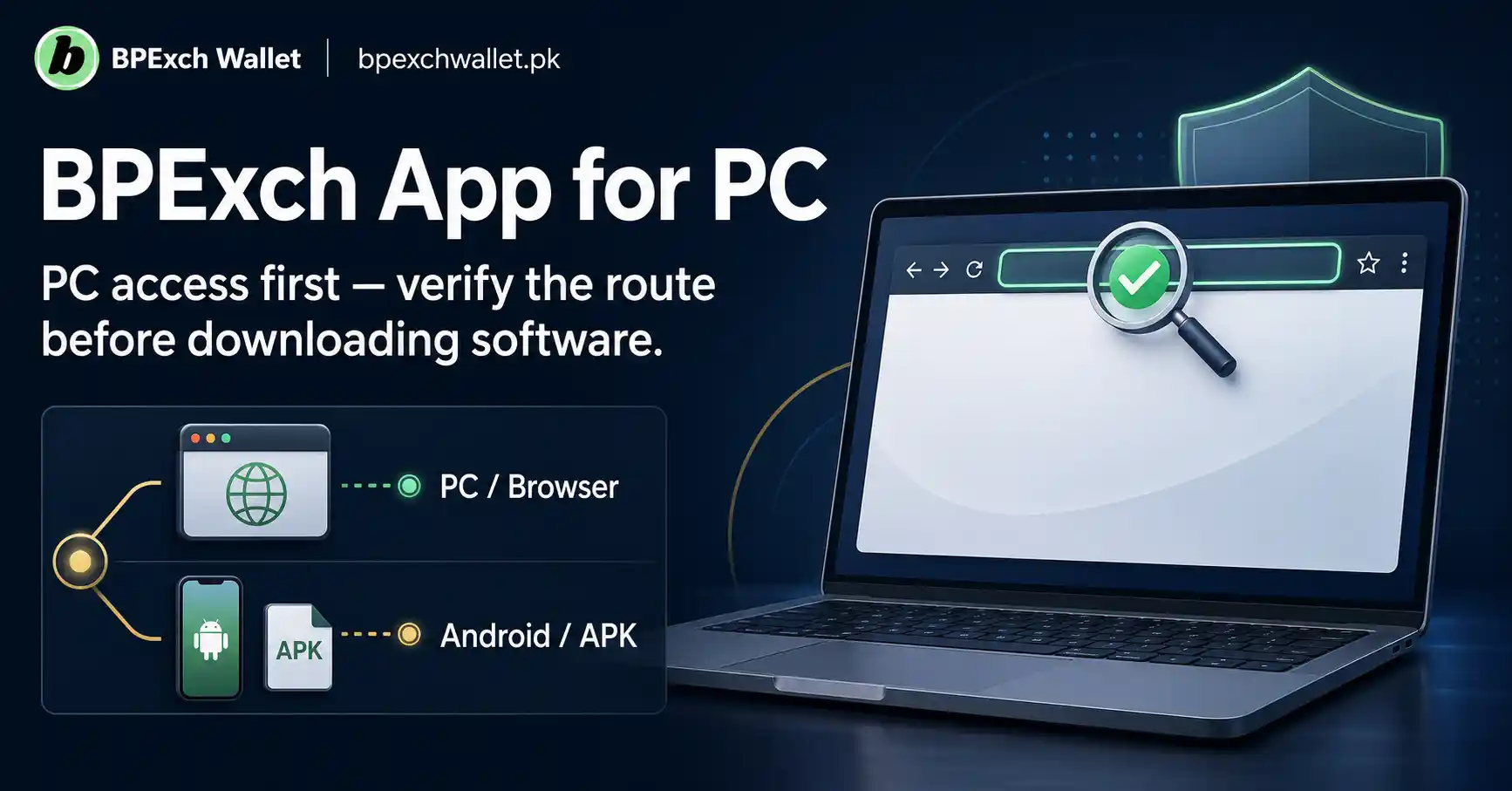
If you searched for BPExch app for PC, the useful question is not “Which Windows file should I install?” but “How should I access BPExch safely from a desktop or laptop?” On bpexchwallet.pk, PC intent for users is separated from Android APK intent. The current content route for computer users is browser and device guidance, while Android installation belongs to the dedicated BPExch Wallet APK download guide.
That distinction matters because a search for a PC app can expose you to unrelated downloads, copied brand names, Android packages, emulator tutorials, browser extensions, or third-party software that this site has not verified. A Windows computer should not treat an Android APK as a Windows installer. If another website offers a file under the BPExch name, do not assume the file is required, approved, or connected to the route described on bpexchwallet.pk.
For general BPExch App information, start with the BPExch App guide. If your real task is login, use the BPExch Wallet login guide. If you actually need Android download and installation help, use the APK guide. This article stays focused on PC, Windows, desktop-browser access, download claims, and the safest way to choose the correct route.
Context
Why “BPExch app for PC” is really an access question
People commonly use the word “app” for any service they want to open on a device. On a phone, that often means installing software. On a PC, the same search can mean something different: opening the service in a browser, finding a desktop shortcut, understanding whether a Windows installer exists, or simply reaching the correct login page from a larger screen.
That is why the phrase BPExch app for PC should not automatically be interpreted as a request for an EXE, MSI, ZIP file, emulator package, or browser extension. The safer interpretation is device intent. The user wants BPExch on a computer and needs to know which access method the current site actually supports.
The content architecture on bpexchwallet.pk deliberately separates that question from broad app intent. The BPExch App page remains the main owner of general app access and download routing. This article owns only the narrower PC and desktop-device problem, so it can answer Windows and browser questions without becoming a duplicate BPExch App page.
PC access and Android APK access are different workflows
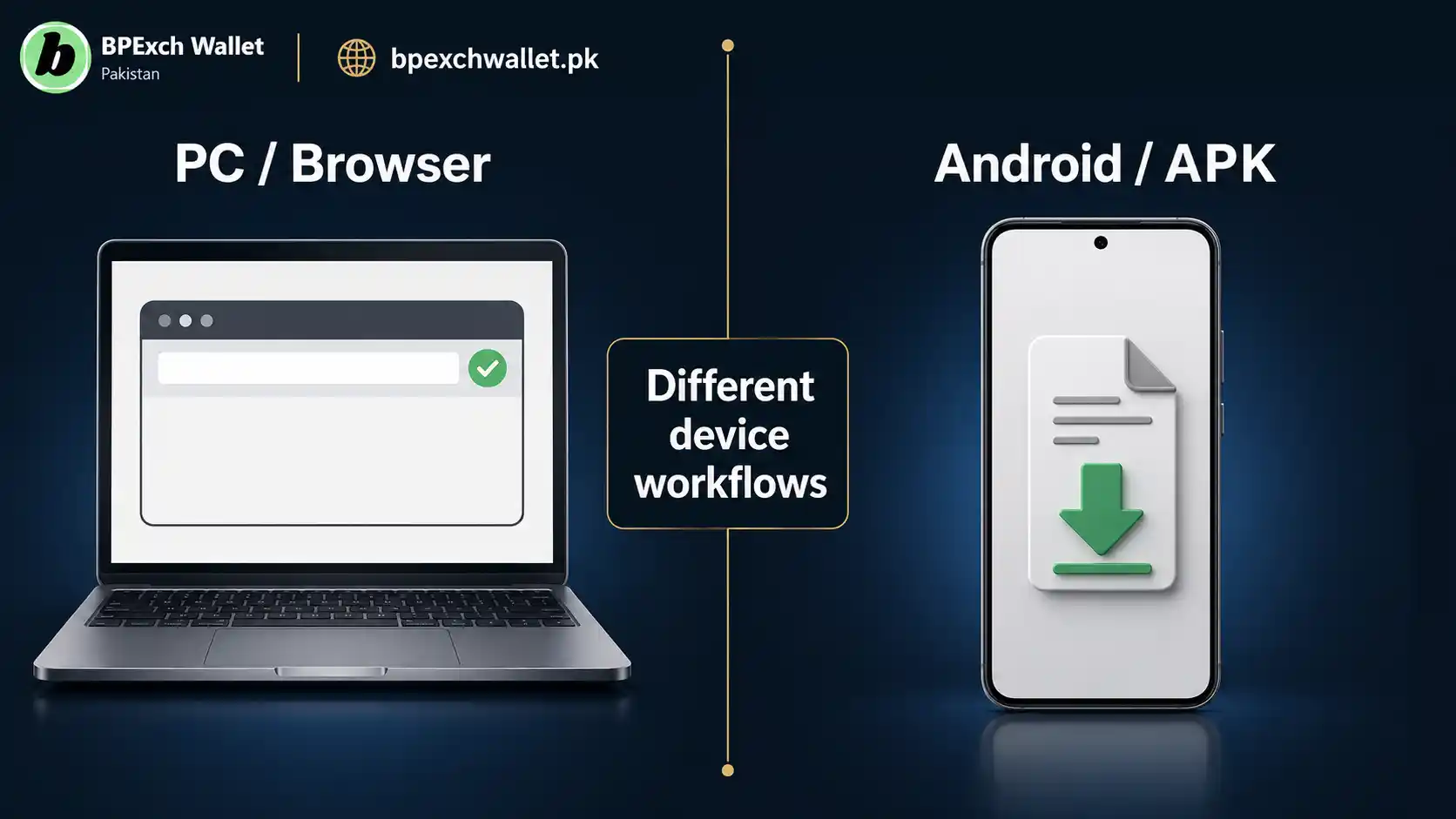
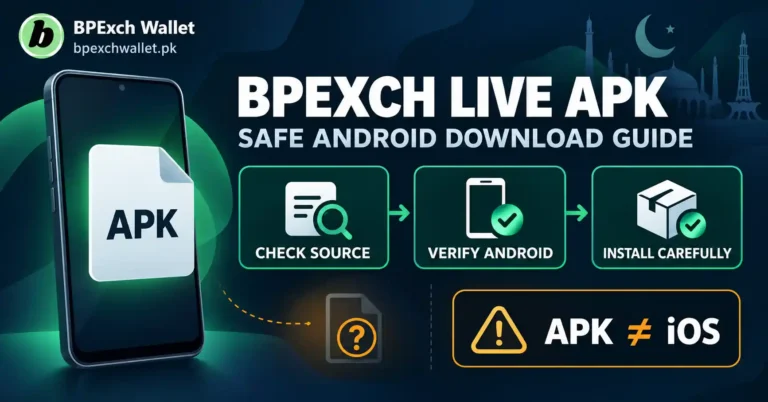
An APK is an Android application package. It belongs to Android installation, not ordinary Windows software installation. A person searching for BPExch on a laptop may still see APK-related pages because the words “app” and “download” appear in both journeys, but the file type and the device task are different.
For that reason, do not download an Android package simply because you are using a Windows laptop and the search result contains “BPExch app.” If your goal is Android installation, move to the BPExch Wallet APK guide. If your goal is PC access, stay with the browser and desktop route described here.
This separation also keeps troubleshooting clearer. An Android installation problem can involve package permissions, device settings, version compatibility, and app updates. A PC access problem is more likely to involve a browser, network connection, saved credentials, redirects, cookies, or the route you opened. Mixing the two can send you toward fixes that do not match the device.
Why “free download” can be a misleading phrase
The supporting query bpexch app for pc free download sounds transactional because it includes the word “download.” Yet a search phrase does not prove that a download is necessary. Searchers often add “free download” because that is how they normally find desktop applications, even when the service they need can be reached through a browser.
On the current bpexchwallet.pk PC route, you should not invent a Windows download merely to satisfy that wording. If the BPExch App guide does not provide a verified Windows installer, an unrelated site offering one should not be treated as a substitute. The correct response is to use the current browser route and keep Android installation on the Android guide.
That distinction is also a security benefit. Microsoft advises Windows users to download applications from trusted sources, keep Windows and browsers updated, and use built-in protections against potentially unwanted software. A “download now” page is not more trustworthy because it uses a familiar product name.
This guide does not create a new product label
“BPExch App for PC” is a search phrase, not evidence that there is a separate product called BPExch PC, BPExch Windows, BPExch Desktop, or BPExch Pro PC. This article does not create any of those entities.
It also does not claim that browser access and mobile access use separate accounts, different backends, or different operators. Those are technical and business claims that require direct evidence. The practical purpose here is narrower: help a computer user identify the correct BPExch route and avoid treating an unverified download as part of the normal PC workflow.
If your question is about the wider service rather than a device, use the BPExch Wallet homepage. If the question is about account setup, use the BetPro Account guide. If it is about ID or password guidance, use the BetPro ID guide.
What Works: BPExch App for PC browser-first device route
The safest practical rule is simple: start from a page on bpexchwallet.pk that already owns the task, then follow the current access route from there. Do not begin with an unknown Windows download page.
For general PC orientation, start with the BPExch App guide. It is the parent page for app access and is the correct place to confirm how the site currently routes desktop, browser, login, and download questions. This article adds PC-specific explanation, but it should not replace the parent page as the main app reference.
A browser-first route also reduces unnecessary software installation. If you can complete the intended access task through the current web route, there is no reason to add an emulator, extension, installer, download manager, or third-party wrapper just to make the experience feel more like a phone app.
Step 1: start from a route you already trust
Open bpexchwallet.pk directly or use a saved bookmark that you previously verified. From there, use the BPExch App page for general app access or the dedicated login guide when login is the actual task.
This creates a useful source hierarchy. First comes a route on the site you already know. Second comes the task page linked from that site. Third comes any external destination that the current task page intentionally sends you to. A random search result, forwarded message, short link, or download page should not outrank those sources merely because its title looks convincing.
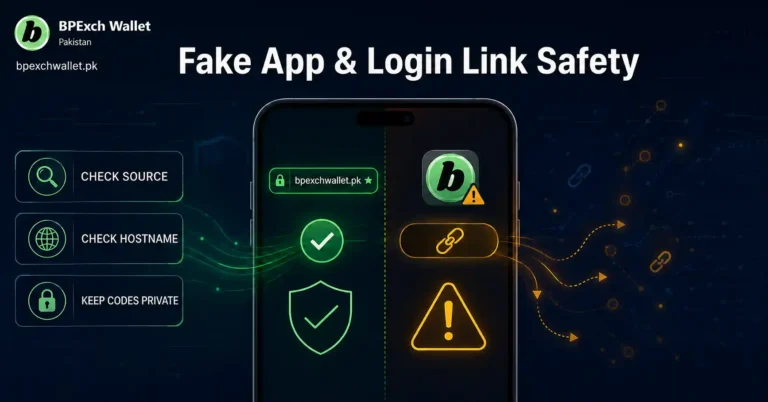
On a desktop screen, take advantage of the extra space. Read the full address bar before entering credentials. Look for unexpected hostnames, extra words, unusual redirects, or browser warnings. Familiar colors and logos are easy to imitate; the route you used to reach the page is often more informative than appearance.
Step 2: use an updated browser and operating system
Keep Windows and your browser updated through their normal update tools. Updates fix security issues and can also resolve rendering, certificate, and compatibility problems that appear as mysterious login or loading failures.
If the page does not load correctly, test the simplest causes first. Check the internet connection, refresh the page once, close and reopen the browser, and try a private window or another current browser before assuming your account has failed. A device problem and an account problem can look similar from the outside, but they need different fixes.
Do not respond to a browser error by immediately installing a “BPExch PC fixer,” extension, VPN bundle, or unknown executable. That adds another variable and can make the original problem harder to diagnose. Microsoft’s Windows security guidance recommends caution with unfamiliar software and potentially unwanted applications.
Step 3: separate login help from PC setup
If the page opens but your credentials do not work, the problem is no longer mainly “BPExch app for PC.” It is a login problem. Move to the BPExch Wallet login guide instead of repeating downloads or changing device settings.
Check what you typed, especially capitalization, spaces, and browser autofill. Saved passwords can become outdated after a password change. If the browser inserts an old credential automatically, remove it and enter the current information manually.
Do not send passwords, OTPs, PINs, reset codes, or device-unlock codes to someone offering to “set up BPExch on PC.” A computer setup question does not create a legitimate reason for another person to receive authentication secrets. If support is needed, move outside the suspicious conversation and use the site’s current contact route.
Step 4: treat Windows download claims as unverified until the parent page confirms them
The most important check for a supposed Windows application is not the filename. It is whether the current BPExch App page intentionally provides that Windows route.
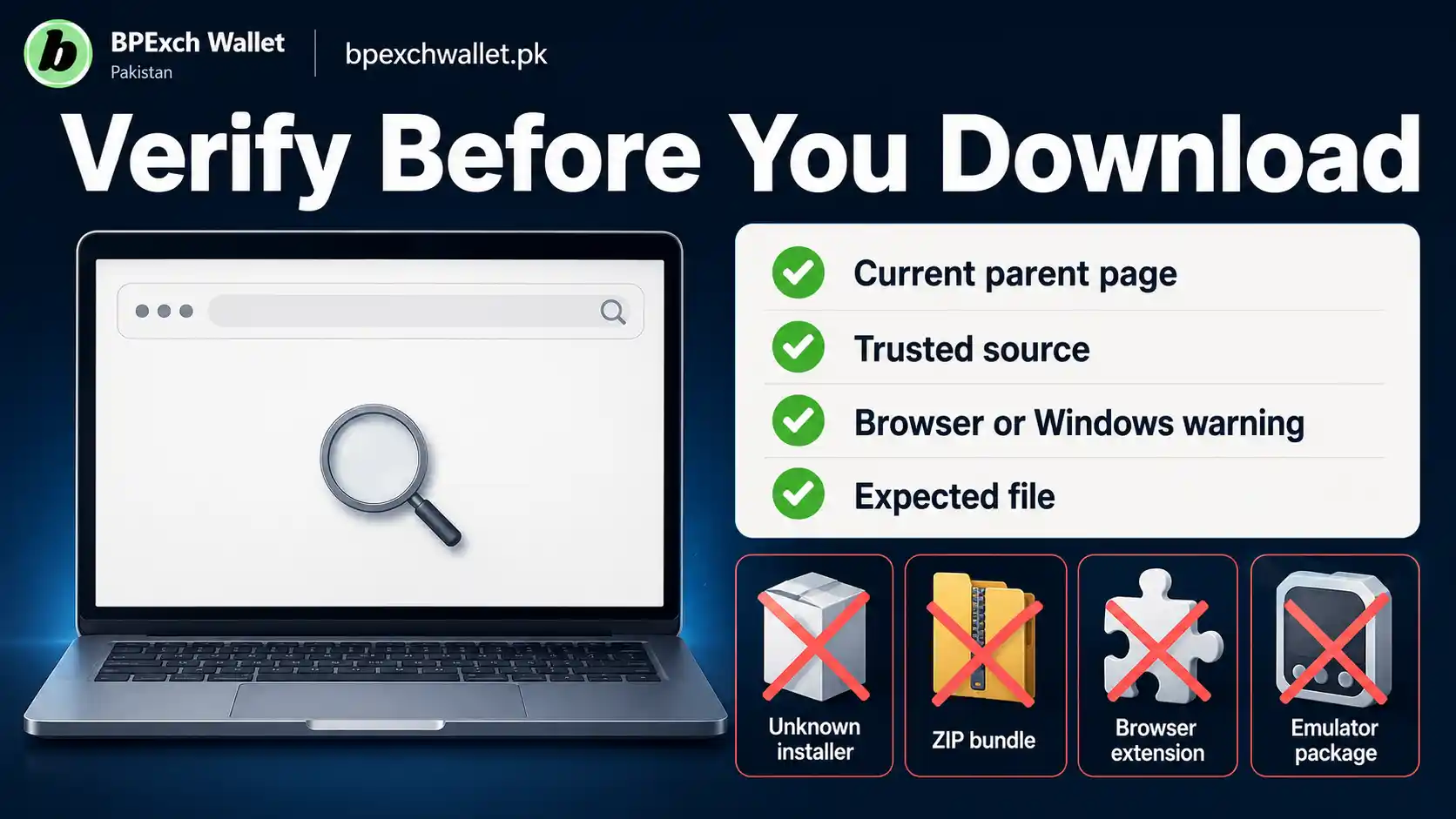
If it does not, do not assume another website can fill the gap. A file called “BPExch PC,” “BPExch Windows,” “BPExch desktop,” or “BPExch app free download” can still be unrelated, outdated, repackaged, or unsafe. A familiar filename is not proof of source or ownership.
Windows itself provides reputation-based and app-control protections that can warn about suspicious or potentially unwanted software. Keep those protections enabled. If Windows or your browser warns about an unfamiliar download, do not disable security controls merely because a web page tells you the warning is normal.
Step 5: do not use an Android emulator by default
An Android emulator can run some Android applications on a PC, but that does not make an emulator necessary for every service with a mobile app. Emulators also introduce another software layer, additional permissions, extra updates, and more troubleshooting points.
For the BPExch PC intent covered here, the browser route is the simpler starting point. Do not recommend an emulator unless the current first-party route specifically requires one and that requirement can be verified. At present, the site’s content plan treats PC/browser help separately from Android APK installation, so an emulator should not be presented as the default answer.
If your actual goal is to install the Android application on an Android phone, use the APK download guide. That keeps device guidance attached to the device it was written for.
Step 6: use bookmarks carefully
A verified bookmark can make repeat PC access easier because it reduces the need to search every time. But a bookmark is useful only while its destination remains current.
Save the task page rather than an unexplained redirect when possible. For example, you can bookmark the BPExch App guide or login guide on bpexchwallet.pk and use it as a stable starting point. If an external access address changes later, the task page can be updated without requiring you to remember an old domain.
Review a bookmark if the destination suddenly changes, shows a different hostname, asks for unusual information, or triggers a browser warning. Do not assume a saved link is permanently safe simply because it worked before.
Step 7: create app-like convenience without inventing a Windows app
Some browsers allow you to pin a website, create a shortcut, or keep a tab available for quick access. Those convenience features do not turn the website into a separately verified Windows application, and they do not prove that a native installer exists.
If you use a shortcut, create it only after you have verified the destination. Name it clearly, for example “BPExch App guide” or “BPExch login guide,” so another user of the computer does not mistake a shortcut for installed software.
This approach is useful because it gives you quick access without adding unknown executables. The important thing is the verified destination, not whether the icon looks like a traditional desktop program.
Step 8: understand what the “free download” keyword should lead to
If you searched bpexch app for pc free download, first decide what you actually wanted to download. If you wanted Android software, the Android APK page is the correct specialist route. If you wanted to use BPExch on Windows, begin with browser access instead of assuming a PC installer must exist.
The phrase “free download” should therefore be answered with a decision, not a forced download button. A responsible guide can say that the current site does not provide a verified Windows installer route and direct the reader to browser access, while keeping Android software on its own page.
That answer is more useful than inventing a Windows package, linking to an unverified file, or suggesting that an emulator is mandatory.
Step 9: keep shared computers separate from personal computers
A desktop or laptop may be shared with family, coworkers, or other users. That changes the privacy risk even when the route itself is correct.
On a shared machine, avoid saving sensitive credentials in the browser unless you control the profile and understand the consequences. Sign out when finished. Do not leave account pages open in a shared browser session, and be careful with screenshots, browser history, clipboard contents, and downloaded files.
On a personal computer, use a locked user account and normal Windows security protections. Device security cannot guarantee account safety, but it reduces the chance that someone with local access can reuse an open session.
Step 10: diagnose browser problems before account problems
If BPExch works on your phone but not on your PC, that difference is a clue. Test the computer before changing account information.
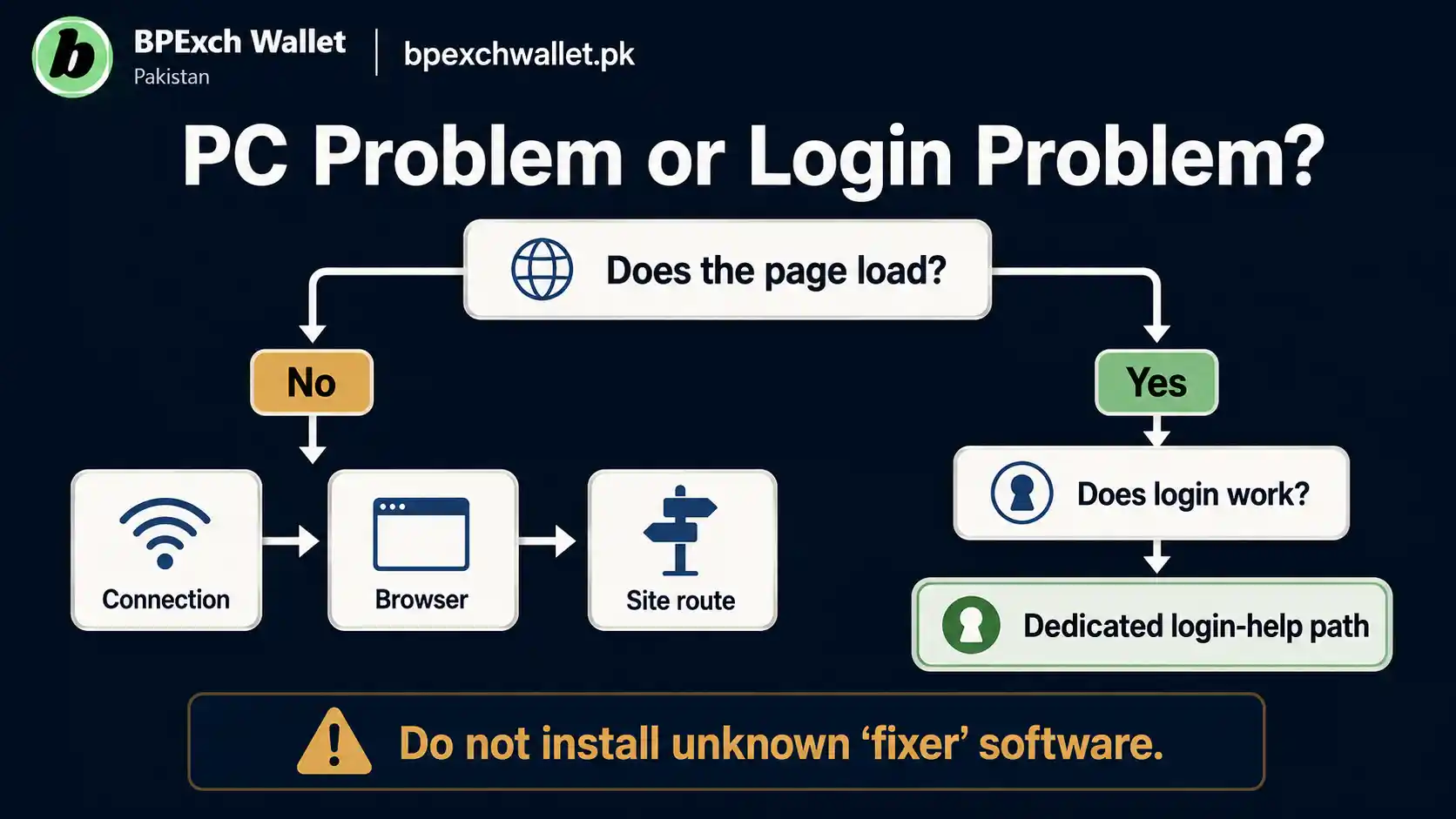
Check whether other websites load normally. Try the same BPExch task page in another current browser. Review whether a privacy extension, corporate firewall, DNS filter, or browser setting is blocking required content. Clear only the relevant site data if necessary rather than deleting every saved browser item without a reason.
If the site loads but login fails on both phone and PC, move to login support. If only one browser fails while another works, the problem is likely local to that browser rather than evidence that the BPExch account itself is unavailable.
Step 11: route account creation away from the PC article
A new visitor may search for a PC app before they have an account. This article should not turn that device query into a second signup guide.
If the real task is joining or creating access, use the BPExch Wallet sign-up guide and the BetPro Account guide. Those pages own registration and account-lifecycle questions.
The computer does not need a special “PC account” just because you are using Windows. Do not create duplicate credentials or accept an unrelated account offer simply because a download page claims it is required for desktop access.
Step 12: use a three-question decision rule
When a search result is confusing, ask three questions in order.
First: What device am I using? If the answer is Windows PC or laptop, this article applies. If the answer is Android, use the Android APK route.
Second: What action am I trying to complete? If it is login, use login help. If it is signup, use signup help. If it is general app orientation, use the BPExch App parent.
Third: What source is asking me to install something? If the current bpexchwallet.pk app route does not provide that file, stop and verify before downloading it. These three questions usually solve the confusion faster than searching for more variations of the same phrase.
Step 13: avoid remote-control setup unless you independently trust the helper
PC users are sometimes told that a technician or support contact must control the computer remotely to “install” or “activate” access. Treat that request as high risk unless you initiated the support session through a route you independently verified and you understand exactly what the helper can see and change.
Remote-control software can expose browser sessions, saved passwords, notifications, clipboard contents, files, and account pages. A person with control of the screen may also be able to approve prompts or copy information that was never intended to be shared. Do not install remote-access software merely because someone says a BPExch PC app requires it.
If you are troubleshooting a browser problem, begin with local checks: current browser, connection, site address, private window, and the dedicated login guide. Those steps do not require another person to control the device.
If legitimate technical support is eventually necessary, close unrelated accounts first, remove sensitive information from view, and use a support channel you reached independently. Never disclose passwords, OTPs, PINs, reset codes, or payment credentials during a remote session. When the session ends, close the remote tool, review installed software, and change any credential you believe may have been exposed.
A verified browser route should remain your default reference for future access.
Trade-offs
Browser-first PC access is convenient because it avoids unnecessary installation and keeps the device workflow simple. It also makes updates easier: the website can change without you downloading a new Windows program.
The trade-off is that browser access depends on browser health, internet connectivity, cookies, local security settings, and the current access route. A native application can sometimes provide a more self-contained experience, but this site should not claim such an application exists unless the current BPExch App page verifies it.
Another trade-off is convenience versus caution. A third-party download can look like the fastest route when a search result promises “one-click PC installation.” Verifying the source takes longer. Yet installing an unknown executable, extension, or emulator can create a much larger problem than spending an extra minute checking the parent app page.
There is also an SEO and user-navigation trade-off behind the scenes, but readers experience it simply as page clarity. The broad BPExch App page must remain useful for general app intent, while this article stays narrow enough to solve PC/device questions. Deep login, APK, signup, account, deposit, and withdrawal instructions belong to their specialist owners so that updates do not conflict.
Next Steps
For a Windows desktop or laptop, use this sequence:
- Open the BPExch App guide as your general starting point.
- Follow the current browser or access route shown there rather than searching for an unknown Windows installer.
- Read the full destination address before entering credentials.
- Keep Windows and your browser updated.
- Leave browser and Windows security warnings enabled.
- If login fails, switch to the BPExch Wallet login guide.
- If you actually need Android installation, switch to the BPExch Wallet APK guide.
- If you need account setup, use the sign-up guide or BetPro Account guide.
- Do not create a duplicate account, install an emulator, or run an unknown Windows file merely because another page says it is required.
The key idea is to let the device and action determine the route. “PC” tells you to start with desktop/browser guidance. “Login,” “APK,” or “sign up” tells you when to leave this article for the specialist page.
FAQs
Is there a BPExch app for PC?
Bpexchwallet.pk currently treats PC intent as browser and desktop-access guidance rather than providing a separate verified Windows installer route in this content cluster. Start with the BPExch App page and follow its current access path. If that page later adds a Windows download, the current first-party route should take priority over older guidance.
Can I get BPExch app for PC free download?
Do not assume a Windows file is necessary because the query includes “free download.” For PC use, start with the browser route. If you meant the Android application, use the dedicated APK guide. Avoid Windows installers, ZIP files, extensions, or emulator bundles that the current BPExch App page does not verify.
Is the BPExch Android APK the same as a Windows PC app?
No. An APK is an Android application package. It should not be treated as a normal Windows installer. Keep Android installation on the APK guide and PC access on the browser/device route.
References
This guide is based first on the current content ownership and routing used across bpexchwallet.pk. The BPExch App guide owns broad app access and download routing. The BPExch Wallet login guide owns deep login help. The BPExch Wallet APK guide owns detailed Android download and installation intent. Account and ID questions route to the BetPro Account and BetPro ID pages.
For general Windows safety, Microsoft recommends downloading software from trusted sources, keeping Windows and browsers updated, and using built-in protection against potentially unwanted applications. Google Chrome’s Safe Browsing guidance also recommends respecting warnings about phishing, malware, harmful downloads, and deceptive websites. Those sources support general PC security principles; they do not establish BPExch-specific product features.
Conclusion
If you searched for BPExch app for PC, start with the BPExch App guide, confirm the current desktop or browser route, and avoid installing an unverified Windows file simply because it uses the BPExch name. Use the dedicated login, APK, signup, account, or ID page as soon as your task becomes specific. That gives you the shortest route without turning a device question into an unnecessary download problem.